Pick the agent. Bring the model.
Use local models with Codex, Claude, Cursor, OpenCode, Grok, Hermes, and Pi. Keep the project, conversation, and review tools around them.
Your agents. Your machine.
A home for your coding agents and local models. Build on your desktop. Pick up from your phone. Keep your flow.

Eight agents. One home port.
Plus your local models Codex
Codex  Claude
  OpenCode
  Cursor
  Grok
Grok  Hermes
  Pi
Pi  Antigravity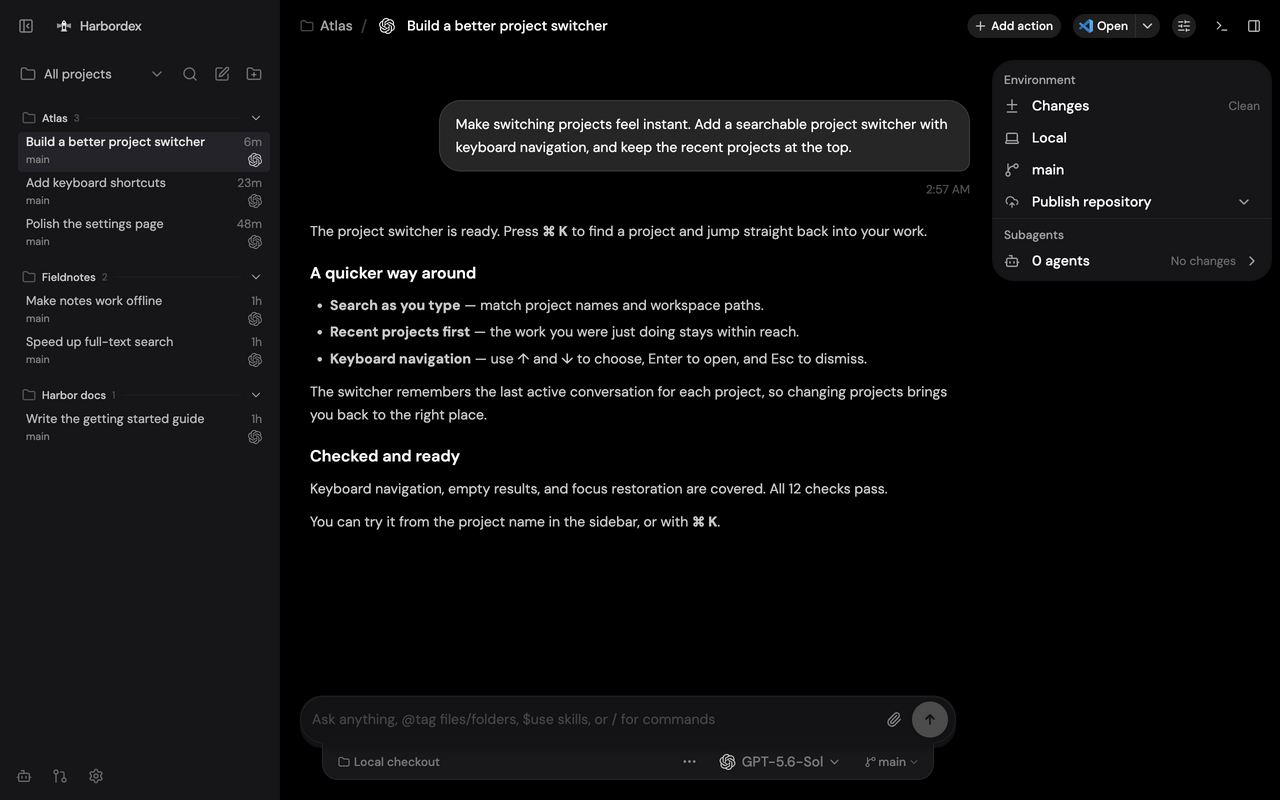
A home port for everything you’re building.
01 / Local by choice
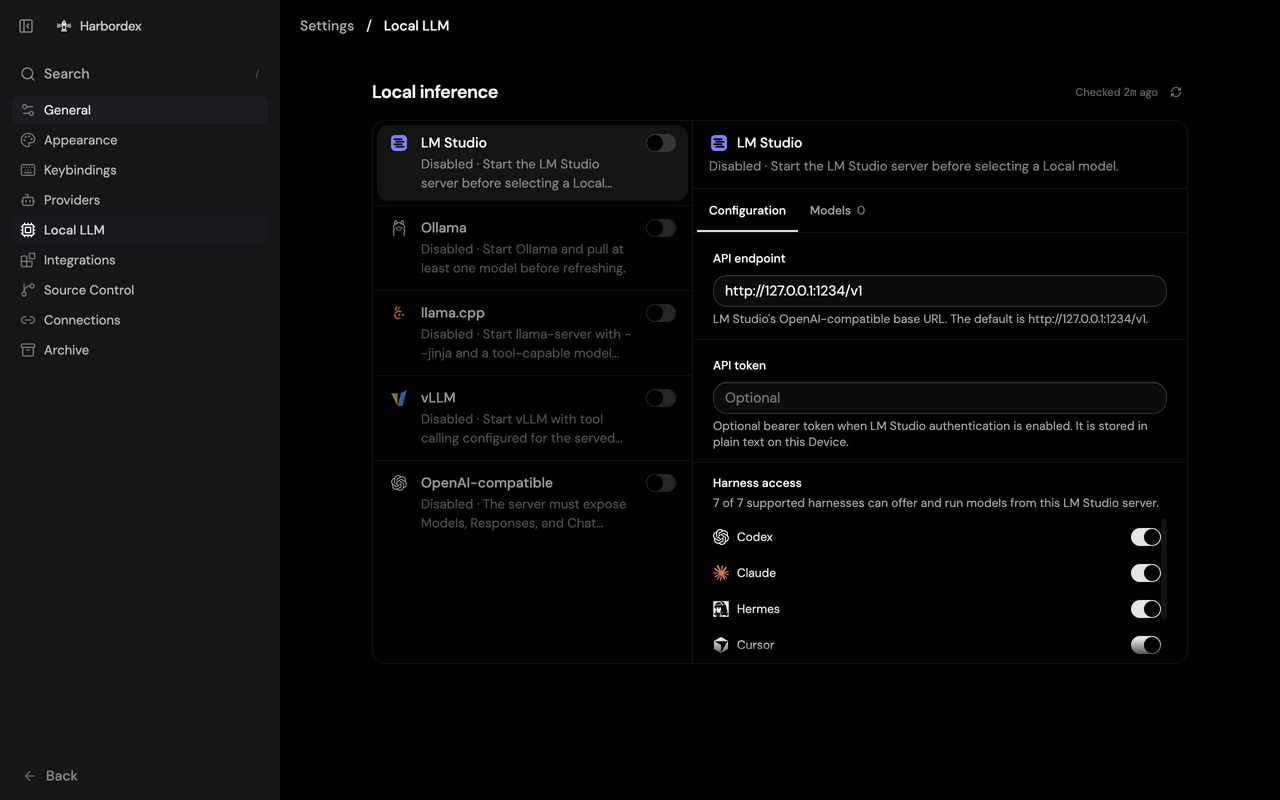
Give your coding agents a local brain. Connect a model server you run, then choose its models in the same workspace you use for cloud agents.
 LM Studio
  Ollama
  llama.cpp
  vLLM
vLLM  OpenAI-compatible
 A local model. A familiar workflow.
Start your local model server, then enable it in Settings → Local LLM.
Your server’s available models appear together in the Models tab.
Toggle which supported agents can use your local models.
Mock settings demo · Sample server and models. Compatible server API required.
Compatibility details ↗Use local models with Codex, Claude, Cursor, OpenCode, Grok, Hermes, and Pi. Keep the project, conversation, and review tools around them.
Connect multiple runtimes, choose which agents can use each one, and show the models you want in the picker.
Inspect loaded LM Studio model instances and unload them when you need room for something else.
02 / The workspace
Give every project, conversation, and code change a place to land. Everything you need to move the work forward, together.
Keep your agent threads organized by project. Move between tasks with the conversation and working context right there.
Follow the plan, inspect changed files, and review the diff. Go from the agent’s answer to the code behind it.
Give separate tasks their own Git worktrees. Keep your branches and agent conversations connected as you build.
Open your app in the integrated desktop browser. Inspect pages, check responsive layouts, and keep a terminal close by.
Browse pull requests across GitHub, GitLab, Bitbucket, and Azure DevOps. Open a review with your agent, right from the inbox.
Connect another Harbordex server or launch one over SSH from the desktop app. Work with the projects and agents on that machine.
03 / Beyond the desk
The coffee can wait.
Your next idea doesn’t have to.
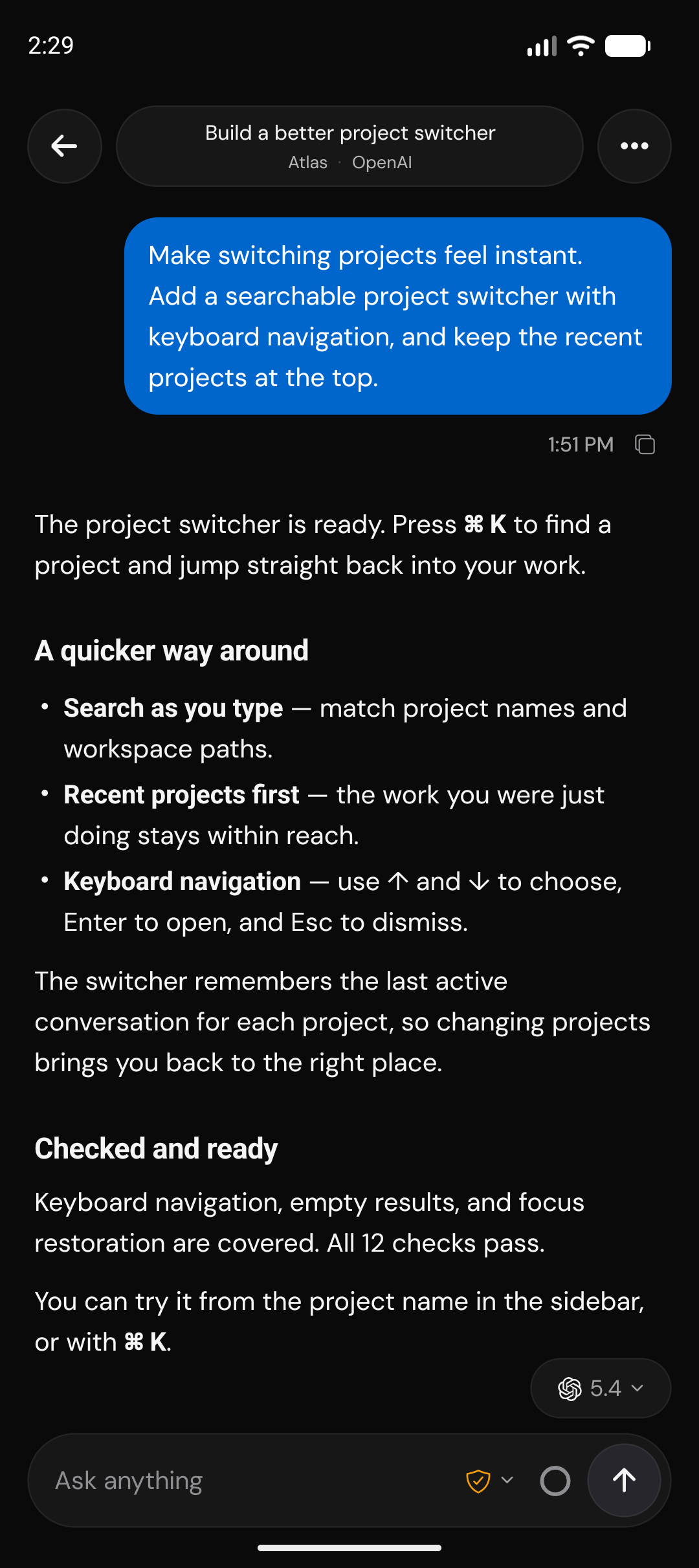
Start a task, answer a question, or review a change from your phone. Your agents keep running on your machine, with your files and your tools.
iOS & Android · In development · Build from source
04 / Your machine stays yours
Your phone connects to the machine running your agents. Pair a device once, then get back to the work.
Use your local Wi-Fi or a private Tailscale network. On these connections, Harbordex doesn’t proxy traffic between your devices.
Pair with a QR code or pairing link. Each paired device is an authorized client you can revoke.
05 / Make yourself at home
Install Harbordex on your desktop, or run the headless server on a remote machine.
Configure an agent in Settings → Providers. Sign in to its service, or connect a compatible local model server, then start a thread.
Build the mobile companion and pair your phone from Settings → Connections.
brew install --cask harbordex winget install Harbordex.Harbordex yay -S harbordex-bin npx harbordex serve npx harbordex serve --host "$(tailscale ip -4)" npx harbordex serve --tailscale-serve Harbordex is a desktop workspace for coding agents, with a mobile companion. It brings projects, conversations, terminals, and code review together. It is a fork of T3 Code and is in early development.
Codex, Claude, OpenCode, Cursor, Grok, Hermes, Pi, Antigravity. Install or configure the agent you want in Settings → Providers; sign-in and model requirements vary by agent. Gemini, GitHub Copilot, and ACP Registry are listed as coming soon in the app.
Yes. Connect LM Studio, Ollama, llama.cpp, vLLM, or an OpenAI-compatible server in Settings → Local LLM. Choose a tool-capable model and enable it for a supported agent. Codex, Claude, Cursor, OpenCode, Grok, Hermes, and Pi can use local models; Antigravity currently cannot. Compatibility depends on the agent and the server’s API: Codex uses Responses, and Claude requires Anthropic Messages support.
Harbordex is free to run. Use an existing provider subscription or API account, or connect a compatible local model server. Hosted providers’ pricing and usage limits still apply; local inference uses the hardware running your model server.
Your agents run on the desktop or remote machine you connect. Your selected model endpoint handles inference: a hosted provider or a local model server you configure. Tools used by an agent can still access external services. Harbordex does not move your workspace into a hosted sandbox.
The iOS and Android companion is in development and is not yet distributed through app stores. You can build it from source, then pair it with your desktop or headless server.
No account is required for the desktop workspace and direct device pairing. Configure your agents and model endpoints locally and authorize the devices you want to connect.
A home for your next big idea
macOS, Windows & Linux. Bring your favorite agent.